How to Create a 410 Gone Status in SEOPress
When you remove a page from your website permanently, the way you handle that removal matters more than most people realise. A 410 Gone response tells search engines (and anyone else visiting that URL) that the resource is gone for good, not just temporarily unavailable. Done correctly, it speeds up de-indexing and keeps your site's crawl budget clean.

Mike Devitt
Owner - Web Design Pro
Reading Time: ( Word Count: )
SEOPress does not advertise a dedicated "410 Gone" button, but the functionality is absolutely there. This guide walks you through exactly how to set it up and, crucially, how to confirm it is working.
What Is the Difference Between 301, 404, and 410?
| Status Code | Meaning | Search Engine Behaviour |
| 301 | Moved permanently | Passes link equity to the new URL |
| 404 | Not found | Google may re-crawl repeatedly before de-indexing |
| 410 | Gone | Google treats this as a definitive signal to de-index quickly |
If a page is permanently gone with no replacement, a 410 is the most honest and SEO-efficient choice. Google's own documentation confirms it processes 410s faster than 404s.
Step 1: Set Up the 410 Gone Redirect in SEOPress
SEOPress handles 410 responses through its Redirections module. Here is how to configure it:
Create the 410 Redirection
- Navigate to SEOPress → Redirections in the left-hand menu
- Click Add New (or the + button) to create a new redirection rule
- Fill in the fields as follows:
URL to redirect (source): Enter the old URL path you want to return a 410 for. Use the relative path from the root of your domain, for example:
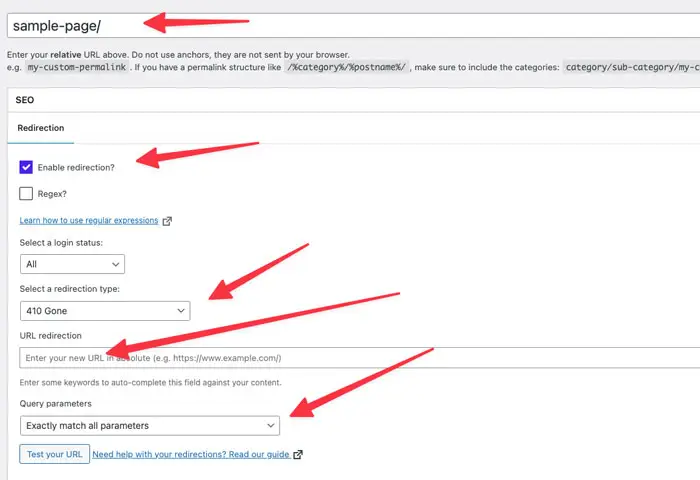
old-blog-post/
Redirect to (destination): Leave this field blank. A 410 has no destination; you are telling visitors and search engines that this resource is simply gone.
Redirect type: Open the dropdown and select 410 Gone
4. Click Save to store the rule
That is all that is required for the SEOPress configuration. Now let us make sure it is actually working.
Step 2: Test the 410 Status in Your Browser
The quickest way to verify the header is being served correctly is directly from your browser's developer tools, without needing any third-party tools at this stage.
Using Chrome DevTools (or Any Chromium-Based Browser)
- Open a new browser tab and press F12 (or right-click anywhere and select Inspect) to open DevTools
- Click the Network tab
- Make sure Preserve log is ticked, as this prevents the tab from clearing results on redirect
- In the address bar, navigate to the URL you have just set the 410 rule for (e.g.
https://yourdomain.com/old-blog-post/) - In the Network tab, click on the first request in the list (the document request for your URL)
- Look at the Status column or the Headers panel on the right
You should see: Status Code: 410 gone
or sometimes. Chrome will just report the url is gone in the browser and show a 410 status.
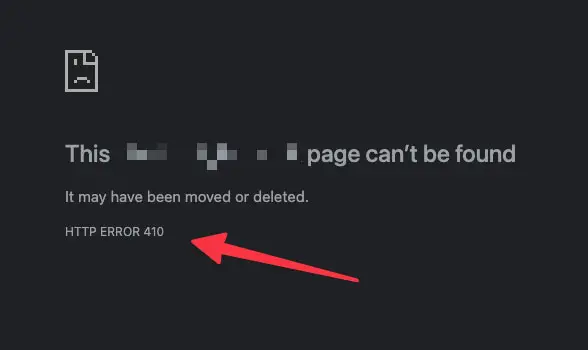
If you see a 200 or 404, double-check that your SEOPress rule is saved correctly and that the Redirections module is enabled. Also try clearing any caching plugins you have active, as they can intercept the response before the 410 header is served.
Step 3: Confirm With an External Header Checker
Browser DevTools is reliable, but for peace of mind and to rule out any browser-level caching, it is worth verifying through an external service as well.
Recommended Free Tools
httpstatus.io is one of the cleanest options:
- Go to https://httpstatus.io
- Paste your full URL into the input field (e.g.
https://yourdomain.com/old-blog-post/) - Click Check
- The results will show the HTTP status code returned for that URL
You are looking for a result of 410 in the Status column.

Other external tools you can include:
- Redirect Checker at redirect-checker.org
- Ahrefs Redirect Checker (if you have an account)
All of these bypass your local browser cache and make a fresh request to your server, so they provide a reliable confirmation layer.
Troubleshooting Common Issues
The URL Is Still Returning a 200 or 404
- Check that the path in your SEOPress rule exactly matches the URL you are testing. Trailing slashes matter, so
/old-postand/old-post/are treated differently - Flush your WordPress permalink settings by going to Settings → Permalinks and clicking Save Changes without changing anything
- Disable or clear your caching plugin temporarily (WP Rocket, W3 Total Cache, LiteSpeed Cache, etc.)
- If you are using a CDN such as Cloudflare, purge the cache for that specific URL
The Redirect Type Dropdown Does Not Show 410
- Confirm you are running a recent version of SEOPress or SEOPress Pro, as older versions may not include the 410 option
- Check that the Redirections module is enabled in SEOPress Settings → Advanced
The External Tool Shows a Different Status Than DevTools
- This usually points to a CDN or server-level cache serving a cached response to external requests. Purge your CDN cache and re-test.
Why This Matters for SEO
Leaving dead URLs returning 404s is not catastrophic, but it is inefficient. Googlebot will keep re-crawling those URLs for weeks or months before eventually de-indexing them, wasting crawl budget that could be spent on your live content.
A 410 response removes that ambiguity entirely. Google has publicly stated that it processes 410s more quickly than 404s, which means pages removed with a 410 are de-indexed faster, keeping your sitemap clean and your crawl budget focused where it should be.
If you are carrying out a large-scale content audit, removing thin or outdated pages, or consolidating a site migration, setting proper 410 responses through SEOPress is a small configuration step that pays dividends in how efficiently search engines process your site.
Summary
- Create a new redirection with the old URL path as the source, leave the destination blank, and select 410 Gone as the redirect type
- Test in DevTools by checking the Network tab for a 410 status code
- Confirm externally using a tool like httpstatus.io to rule out caching
It is a straightforward process once you know where to look, but SEOPress does not make it particularly obvious in its documentation regarding setting up the 410 status.
Where Can I Learn More?
For the latest updates on SEO Press and to learn more about 301 redirect statuses in SEOPress head over to their website.